
Squarespace Secret Hacks and Shortcuts

Note: this article dates from 2021, so some of the content may be out of date, given all the updated to Squarespace in the meantime.
When I first started using Squarespace I had no design or web development education or experience. I was very much self-taught. I was volunteering at the time for my choir and I had put my hand up to be the person to investigate a new website for them. This was 2012. The quotes we were getting from agencies were so high that I decided to investigate Squarespace as a DIY option. I spend every hour of a week trying to get to grips with the platform, loving every minute. I loved the platform so much I immediately saw the scope for helping others who needed a good-looking platform to get them or their organisation online. I went on to study design, coding, digital marketing to get a solid education in all aspects of web design, but continue to use Squarespace to this day, learning more about the platform and all its possibilities all the time.
So, I thought I would share with you some simple shortcuts that I have picked up over the years which are not immediately obvious when you start out on Squarespace, but which can be real time-savers:
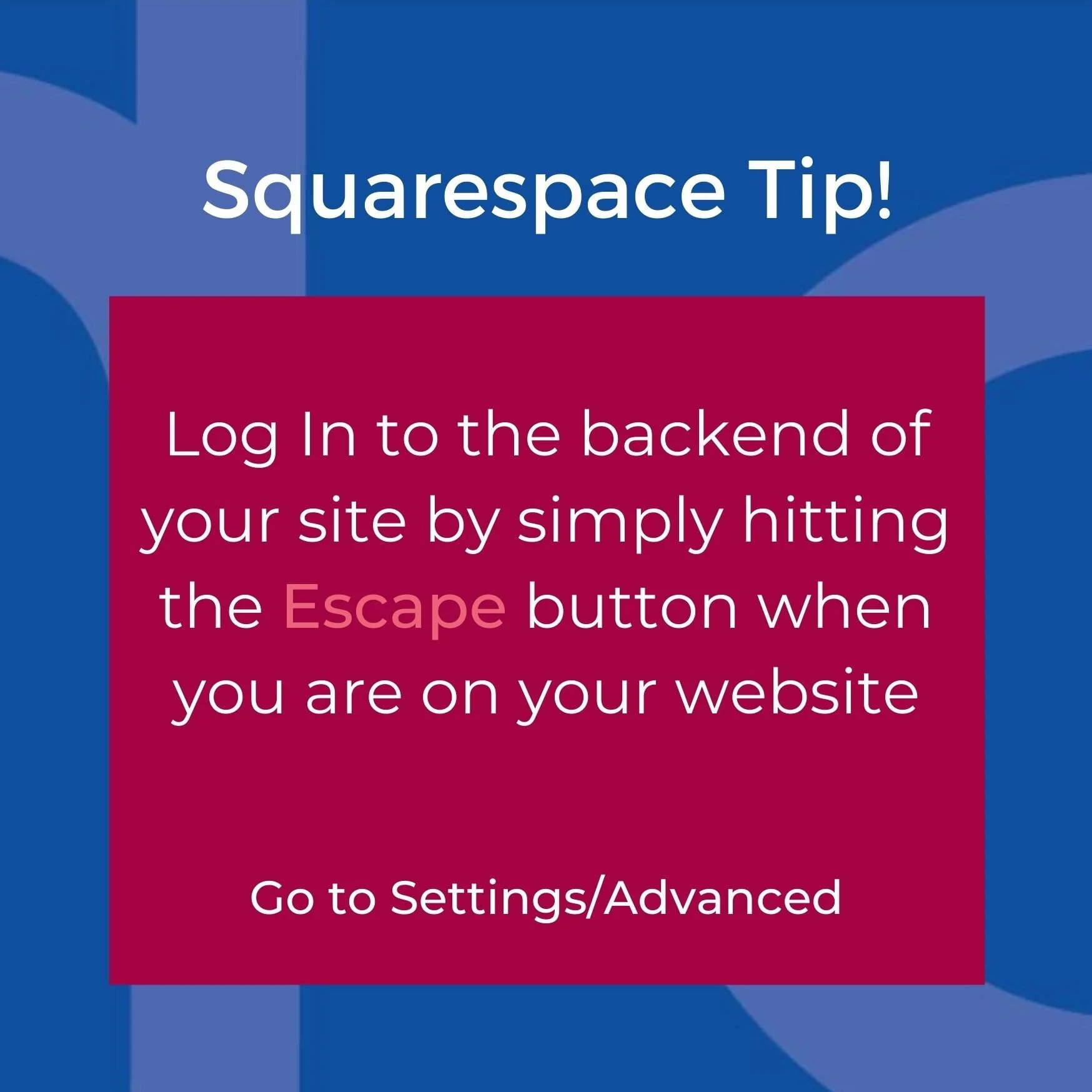
1 Click the escape button to login.
When you are browsing you website from the front end, you can simply click esc on your keyboard to be directed to the Squarespace backend login. If you want to disable / enable this setting, you can do this under Settings > Advanced > Escape Key.
Note, this used to be automatically enabled in Squarespace but now you have to enable it yourself. I remember a client of mine hitting Escape accidentally when browsing his live site and ended up in the backend. He was afraid a site visitor might accidentally do the same so we disabled this functionality. Of course if this does happen, the site visitor doesn’t actually access your backend, but would be taken to a login page which obviously they cannot use as it is not their site.
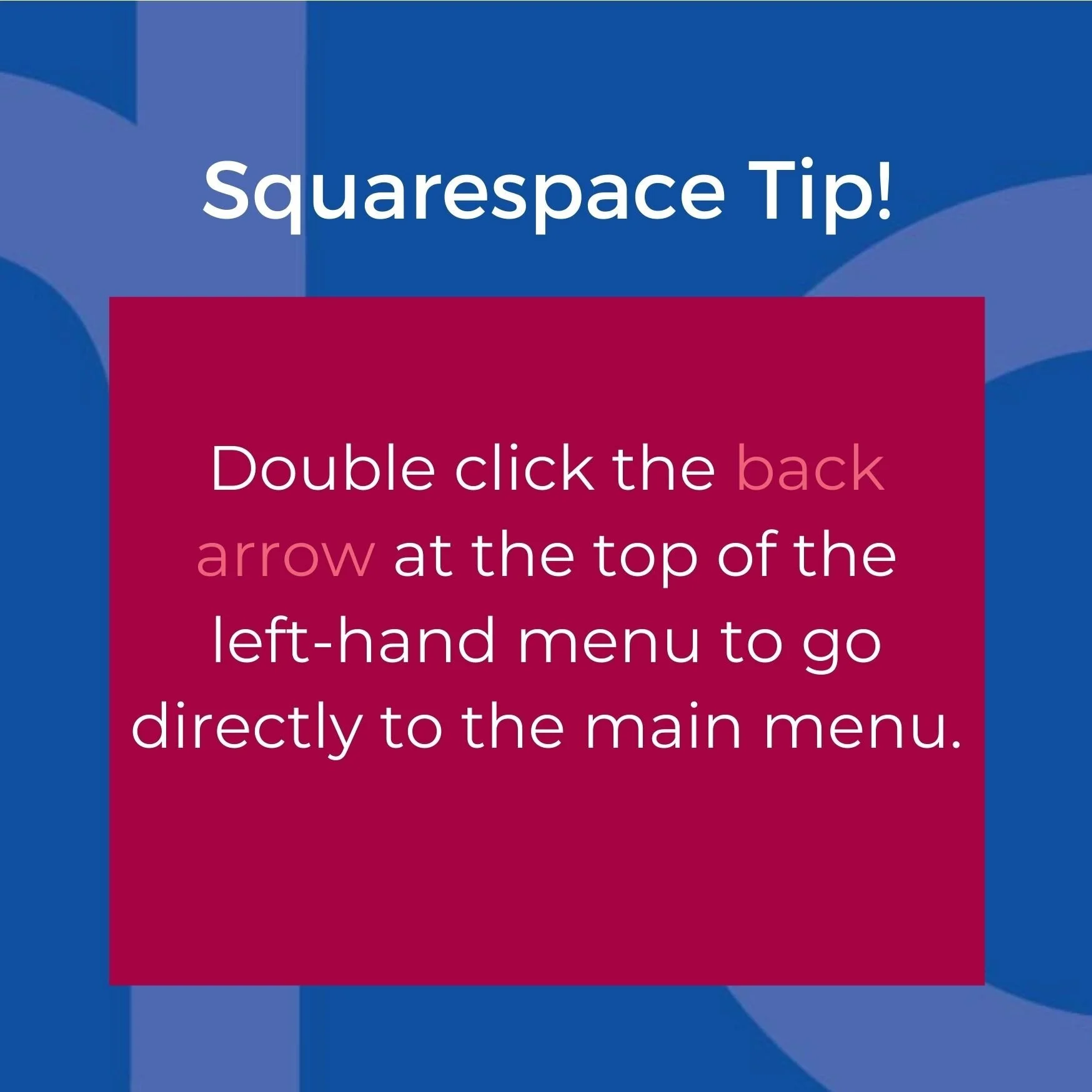
2 Double-click the back arrow to go back to the main menu
If you are deep in a settings menu and want to get back to the main menu quickly, just double click the back arrow at the top left-hand corner (<Settings for example)
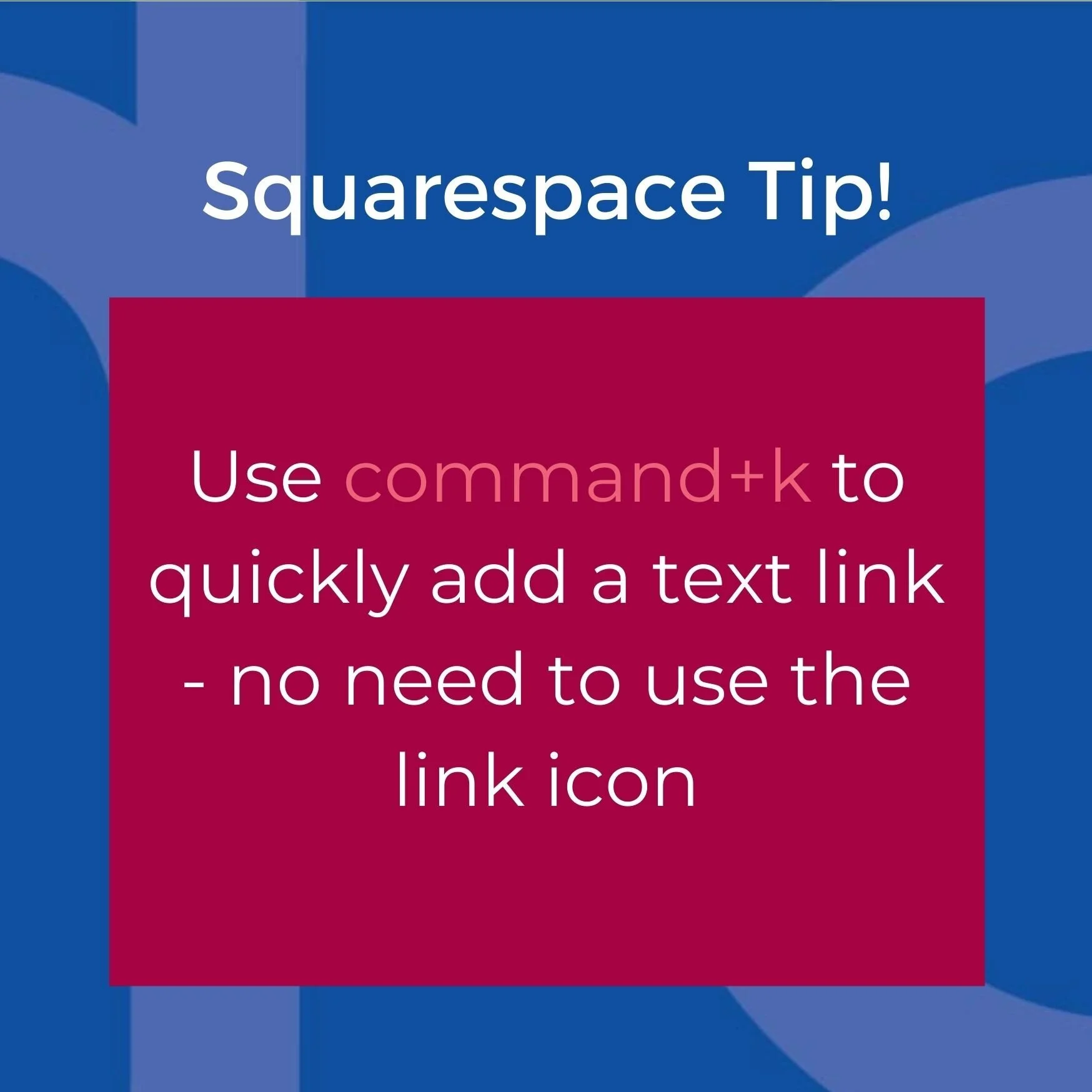
3. Use Command+K
to quickly add a text link when you are typing. No need to go up to the link icon on the grey menu bar above the text.

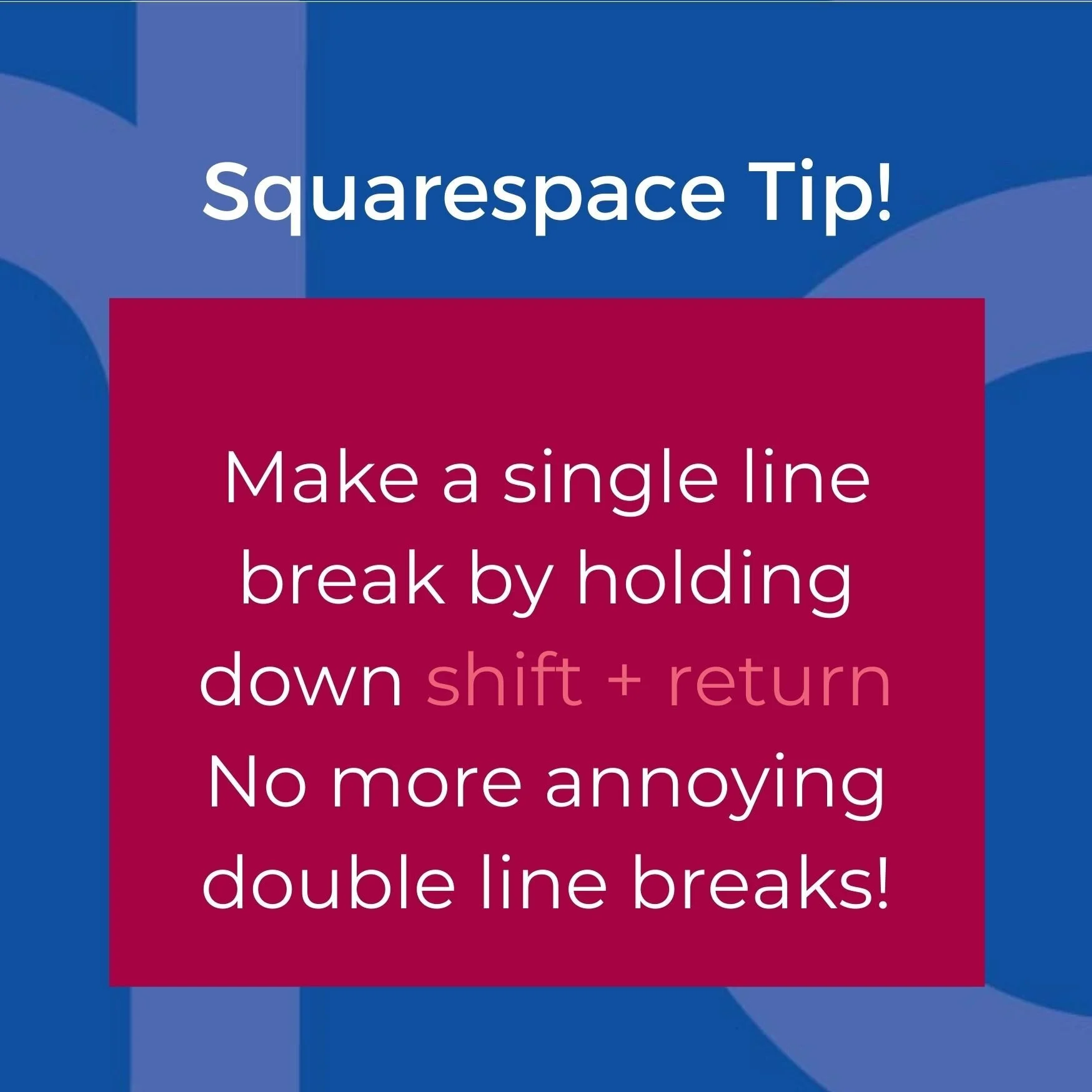
4. Adding a single line break in Squarespace
OK I will admit that this one took me ages to work out and was driving me nuts for a long time. You know when you want to write an address in your footer, for example, you often end up with this:
LucyDesigns
Dun Laoghaire
Co Dublin
When what you really want is
LucyDesigns
Dun Laoghaire
Co Dublin
Nice and neat, right? Well, to do this and avoid the large (double) spaces between lines, hold down shift when you press return on your keyboard.
5. Click on the forward slash key / on your keyboard
to find various settings in the Squarespace menus. It won't find every setting but makes it much easier and faster to move between admin areas.
6. Use two spacer blocks side by side to avoid large white spaces on mobile (in Squarespace 7.0)
When blocks are stacked vertically and occupy the full width of a page (with no blocks on either side), they'll also stack vertically on mobile devices, retaining the page's computer layout. This often creates large white spaces on mobile that you don’t want.
So, my tip is to have two spacer blocks side by side instead of one vertical space block. By doing this, Squarepace will delete them completely on mobile, so you won’t have that nasty extra white space.
It’s good to know, however that spacer blocks are automatically hidden on mobile on all Squarespace 7.1.
7. Change the publication date of your blog posts to put them in alphabetical order
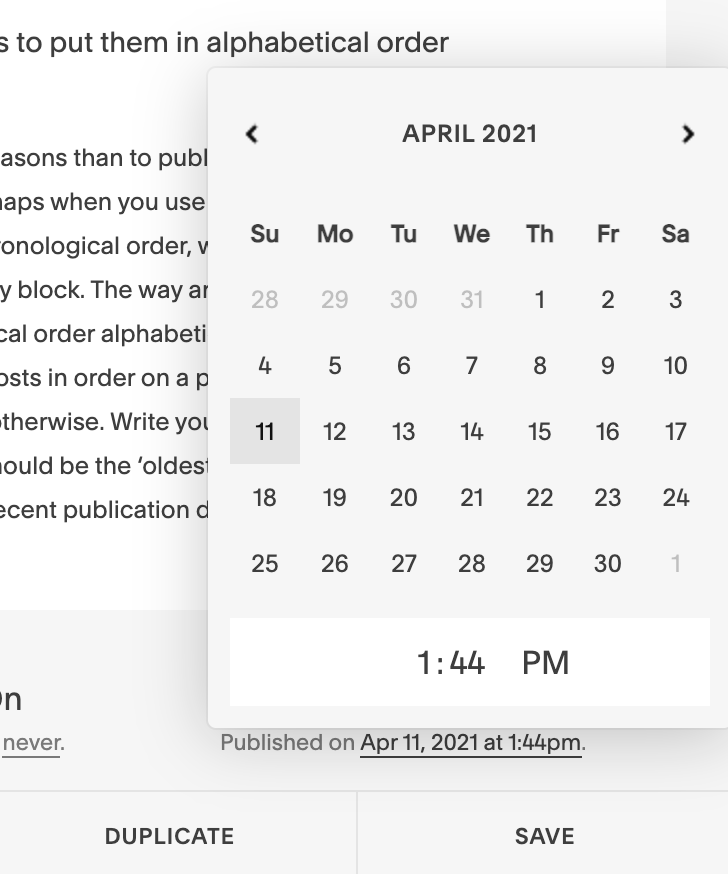
As you know, sometimes we use a blog page for other reasons than to publish an actual blog. Usually when connected to a Summary Block on another page, or perhaps when you use the blog as a database. In these instances you might not want your posts to appear in chronological order, with the most recent post appearing at the top of your page or first in your summary block. The way around this is to change the publication date of the posts so that they are chronological order alphabetically, if that makes sense. I recommend taking a pen and noting the relevant blog posts in order on a piece of paper first, before you start changing publication dates You can get in a right mess otherwise. Write your list ‘backwards’ starting with the topic/person’s name that is closest to the letter Z. This should be the ‘oldest’ publication date, with the topic/person’s name that starts with A having the most recent publication date. You can change the publication date by clicking on ‘Published on’ as per this screenshot:
8. Use the Squarespace Analytics App to get a quick overview of how your content is performing
Have you downloaded the Squarespace Analytics app? It's super handy for checking your site analytics from your phone, or measuring the impact of a recent blog post. They also have an app for editing your site, but it's not great, in my opinion, unless you are making a quick edit of a typo or something small. You really want to be using your desktop or laptop for site editing.
The app is available for Android and iOS.
9. Use Passwords on individual pages to create gated content for particular clients or customers
By clicking on the little cog icon to the right of each page in your Pages Menu, you can add a password to that page. This is handy for creating content that you only want certain customers or clients to view. The steps are:
In the Home Menu, click Pages.
In the Pages panel, click a page to protect with a password.
Click the to the right of the page's title to open page settings.
Scroll down to Password and enter a password in the field.
Click Save.
You will notice that password-protected pages display a lock icon next to their titles in the Pages panel. Everyone uses the same password to access a password-protected page. It isn't possible to create unique passwords for different people. If you want individual passwords/logins you might want to consider Squarespace Member Areas, a new functionality launched in the past few months by Squarespace.
For more handy Squarespace and digital marketing tips by email, subscribe to my newsletter below.